
 Deutsch
 Dansk
Dansk Svenska
 Nederlands
 Español
 Lietuvos
Experience: 15+ years in SEO and digital marketing
View full bio
When someone links to your website on social media (like LinkedIn) or a messenger app (like Slack) it will often generate a “preview image“. It’s also called a “link preview”.
Here is an example from Slack:
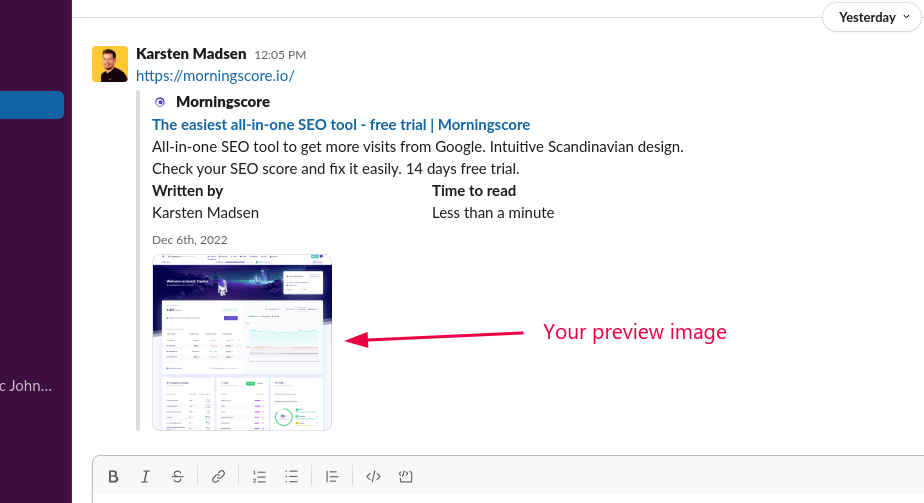
The problem is that often this image does not get updated on social media right away. It can take months 😑
But I found a solution! Here are the instructions:
What is a website preview image?
The preview image you see when sharing links is controlled by something called the Open Graph protocol. This protocol uses an og:image tag in your website’s code to tell social platforms which image to display.
Getting this right is worth your time.
📊 Why this matters for your business
According to research from Tely AI, visual posts see approximately 150% more engagement than text-only posts.
While Open Graph tags aren’t a direct ranking factor, they indirectly improve SEO through better click-through rates and social engagement signals.
How to upload a preview image to your website and make social media display it instantly:
- Find an awesome image showing your product or company. Recommended size is 1200×630 pixels (that’s the sweet spot for all platforms). Use JPEG for photos or PNG if you need transparency. Keep the file size under a few MB so it loads quickly.
- Upload it through your website editor. Each website editor (CMS) is different. So google “How to change website preview image in WordPress” (insert your own CMS). If you don’t find a good answer try to search for this: “Change Open Graph Image in WordPress” (insert your own CMS)
- Force social platforms to fetch your new image. This is the key step that makes it update instantly! Use these official tools:
- Facebook Sharing Debugger – Paste your URL, click “Debug”, then click “Scrape Again”
- LinkedIn Post Inspector – Paste your URL and click “Inspect”
- X Card Validator – Paste your URL to validate and refresh the cache for your X/Twitter card
- Check your results. In my case this also made Slack update its cache and show me the new link preview. Most messenger apps (Discord, Teams, etc.) will pick up the update within a few hours.
That’s it! 🎉
Video instructions
I have recorded how I made the different social media accept our new link preview image here:
Technical best practices for your website preview image
Want to make sure your preview image works perfectly everywhere? Here’s what I’ve learned from setting this up on hundreds of pages:
✅ Required Open Graph tags
Your website needs these tags in the HTML <head> section. According to the Open Graph protocol, these are the core properties every page should have:
og:title– Your page titleog:type– Usually “website” or “article”og:url– The full URL of your pageog:image– Your preview image (must be an absolute HTTPS URL)
🎯 Optimal image specifications
Based on 2026 image size benchmarks and expert testing, here is the winning formula:
- Dimensions: 1200 x 630 pixels (1.91:1 aspect ratio)
- Format: JPEG for photos, PNG for graphics with text or transparency
- File size: Keep it under 2-3 MB for fast loading
- URL: Always use HTTPS and avoid redirects
🔧 Advanced Open Graph properties
Add these structured properties to give platforms exact rendering instructions:
og:image:widthandog:image:height– Helps scrapers process your image fasterog:image:alt– Describes the image for accessibility (and some platforms use this)og:image:secure_url– Explicitly specify the HTTPS versionog:image:type– MIME type like “image/jpeg” or “image/png”
WordPress users: watch out for these gotchas
If you’re using WordPress (like most of us!), there are a few special things to know:
Use an SEO plugin. Plugins like Yoast SEO, Rank Math, or All in One SEO make it easy to set your social preview image. Just look for the “Social” or “Open Graph” settings in the plugin.
Shortcode images can be tricky. If you’re using page builders or shortcodes, your SEO plugin might not detect images automatically. A common solution is to use a plugin for dynamic Open Graph images to ensure they are handled correctly. The fix: manually set your social image in the plugin settings for that page.
Need manual control? You can add Open Graph tags directly to your theme’s header.php file or use plugin filters. This complete guide to meta tags shows exactly how to implement the code including width and height attributes.
Still not updating? Here’s your troubleshooting checklist
If you’ve updated your image but social platforms are still showing the old one, work through this checklist:
- Verify your og:image tag exists – View your page source and search for “og:image”. Make sure it’s in the
<head>and uses an absolute HTTPS URL. Check the Open Graph protocol for correct formatting. - Check image dimensions and format – Confirm your image is 1200 x 630 pixels and saved as JPEG or PNG. Follow current 2026 guidelines for specifications.
- Force Facebook to re-scrape – Go to Facebook Sharing Debugger, paste your URL, click “Debug”, then “Scrape Again”.
- Force LinkedIn to re-scrape – Go to LinkedIn Post Inspector, paste your URL, and click “Inspect”.
- Force X/Twitter to re-scrape – Go to X Card Validator, paste your URL, and validate.
- Try the cache-busting filename trick – If scrapers still show the old image, rename your file (like “image-v2.jpg”) or append a version parameter (“image.jpg?v=2”). This forces CDNs and platforms to treat it as a new resource. This fix works because the URL changes.
- Purge your CDN cache – If you use a CDN, the old image might be cached there too. Log into your CDN dashboard and purge the cache for that image URL, then run the debugger tools again.
- For WordPress: check your plugin settings – Make sure your SEO plugin’s social image is set correctly. If needed, use the Yoast OpenGraph API to manually customize your images.
Common pitfalls to avoid
Non-HTTPS image URLs. Some platforms won’t display images served over HTTP. Always use HTTPS for your image URLs.
Redirect chains. If your image URL redirects (especially multiple times), platforms may give up trying to fetch it. Use the final direct URL.
Multiple conflicting og:image tags. If you have multiple og:image tags, platforms might pick the wrong one. Keep just one, or if you need alternatives, use structured properties in the correct order.
CDN cache TTLs set too long. If your CDN caches images for days or weeks, updates will be slow. Consider shorter TTLs for OG images or purge the cache after updates.
For the technical folks: dynamic OG images
Building a system that generates preview images on the fly? You’re not alone!
Check out this detailed performance case study from Gleam. They optimized their OG image generation from ~2.5 seconds down to ~0.45 seconds and increased their cache hit rate from 35% to 85%.
Their key strategies: template precompilation, multi-layer caching (in-memory + Redis + CDN), resource preloading, and parallel rendering. If you’re generating hundreds or thousands of custom preview images, these optimizations are gold.
“Open Graph tags don’t take long to set up, but they make a big difference in how your content travels across the internet.” – Lince Mathew, Medium
Where will this preview image display?
Wow, in so many places. Here is a list of the most common websites and Apps I know of that uses the preview image (or link preview as it’s also called).
List of social media that will show a preview image:
- Twitter / X
List of Messenger apps that will show a preview image:
- Slack
- Microsoft Teams
- Facebook Messenger
- Discord
They are all basing it on what’s called an Open Graph Image. And that is essentially what you will be adding to your website in this guide.
This article links to official platform tools and the Open Graph specification and includes practitioner case studies to show both the standards and real-world results for keeping link previews accurate and up-to-date.
Real-world results you can expect
I love data, so here’s what other people have seen from optimizing their website preview images:
WeCreate Digital and Digital Dynamo both documented how forcing a re-scrape with the Facebook Sharing Debugger and LinkedIn Post Inspector immediately updated stale preview images after making site-side changes.
Now enjoy the enormous success that will now automatically happen to you as a result of this hard work 😃
About Morningscore: We’re an SEO platform that makes search engine optimization simple and motivating. Our team publishes SEO guides and offers a free SEO course to help businesses grow their organic traffic.
Frequently Asked Questions
Why isn’t my website preview image showing up on social media?
The most common reasons are missing or incorrect Open Graph tags, image dimensions that are too small, or the image URL isn’t accessible. Make sure your og:image tag is in your page’s HTML head section and uses an absolute HTTPS URL. You can use Facebook’s Sharing Debugger or similar tools to identify exactly what’s wrong and force the platform to fetch your image.
How long does it take for social media to update a preview image without using debugging tools?
Without forcing an update, it can take anywhere from a few days to several months for social platforms to naturally refresh their cache. Facebook, LinkedIn, and Twitter all cache preview images aggressively to improve performance. That’s why using platform-specific debugging tools is so important – they let you update the cache instantly instead of waiting.
Do I need different preview images for each social media platform?
No, the recommended 1200 x 630 pixel image works across all major platforms. While Twitter has its own meta tags (twitter:image), most platforms will fall back to your Open Graph image if Twitter-specific tags aren’t present. According to 2026 benchmarking guidelines, the 1.91:1 aspect ratio is the universal sweet spot that displays well everywhere from Facebook to LinkedIn to messaging apps like Slack.
Can I test how my website preview image looks before sharing it?
Yes! You can preview exactly how your image will appear using debugging tools before you share publicly. The Facebook Sharing Debugger, LinkedIn Post Inspector, and X Card Validator all show you a live preview of your link with its image, title, and description. This lets you catch issues and make adjustments before posting to your audience.
What’s the difference between Open Graph tags and Twitter Card tags?
Open Graph tags (og:image, og:title, etc.) are the universal standard created by Facebook and now used by most platforms. Twitter Card tags (twitter:image, twitter:card, etc.) are Twitter’s own metadata system. The good news is that Twitter will use your Open Graph tags if Twitter-specific tags aren’t present, so implementing Open Graph tags alone covers most of your bases. You can learn more about the standard at the official Open Graph protocol site.
Why does my old preview image still appear even after I’ve updated everything?
This almost always means the platform’s cache hasn’t been cleared yet. Even if you’ve updated your og:image tag correctly, Facebook, LinkedIn, and other platforms serve the old cached version until you force a refresh. Go to each platform’s debugging tool and manually scrape your URL – you’ll see the new image appear immediately. If it still doesn’t work, try the cache-busting filename trick: rename your image file or add a version parameter like “?v=2” to the URL.