
 Dansk
Dansk Deutsch
 Svenska
 Español
 Nederlands
Now you can fully automate SEO onsite health fixes with Morningscore and this brand new WordPress plugin where you own the fixes (not a standard):
⬇️ Download RANK AI version 1.0.2 (released 18 Feb 2026)
1 fix = 1 AI credit. Example: Business $99/mo gives 1.000 credits/mo (see plans). 200+ sites installed. Several told us weeks of work was saved 🥳 – Free version available
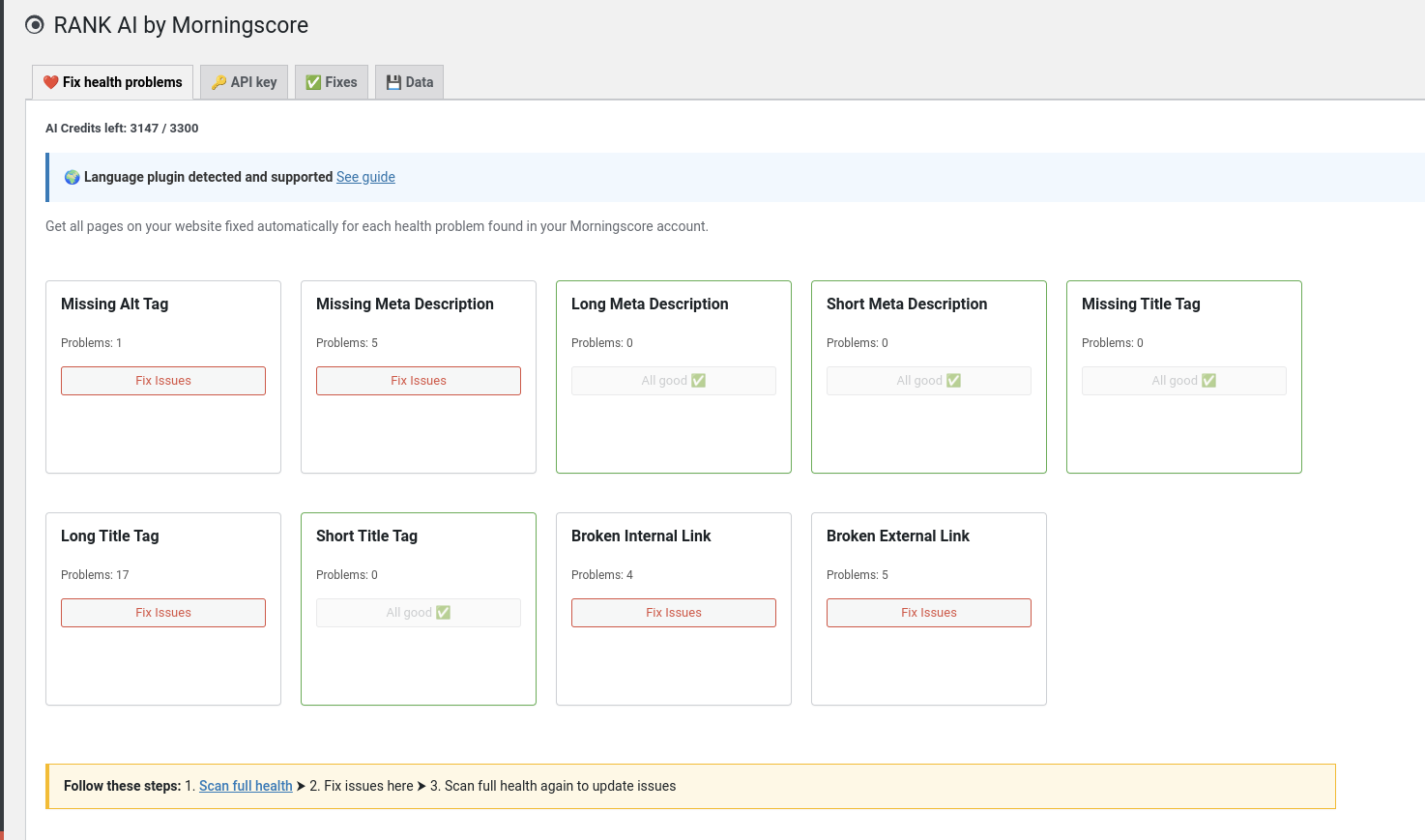
You can test the plugin for free with a trial account and 20 credits to fix problems automatically:
Installation guide
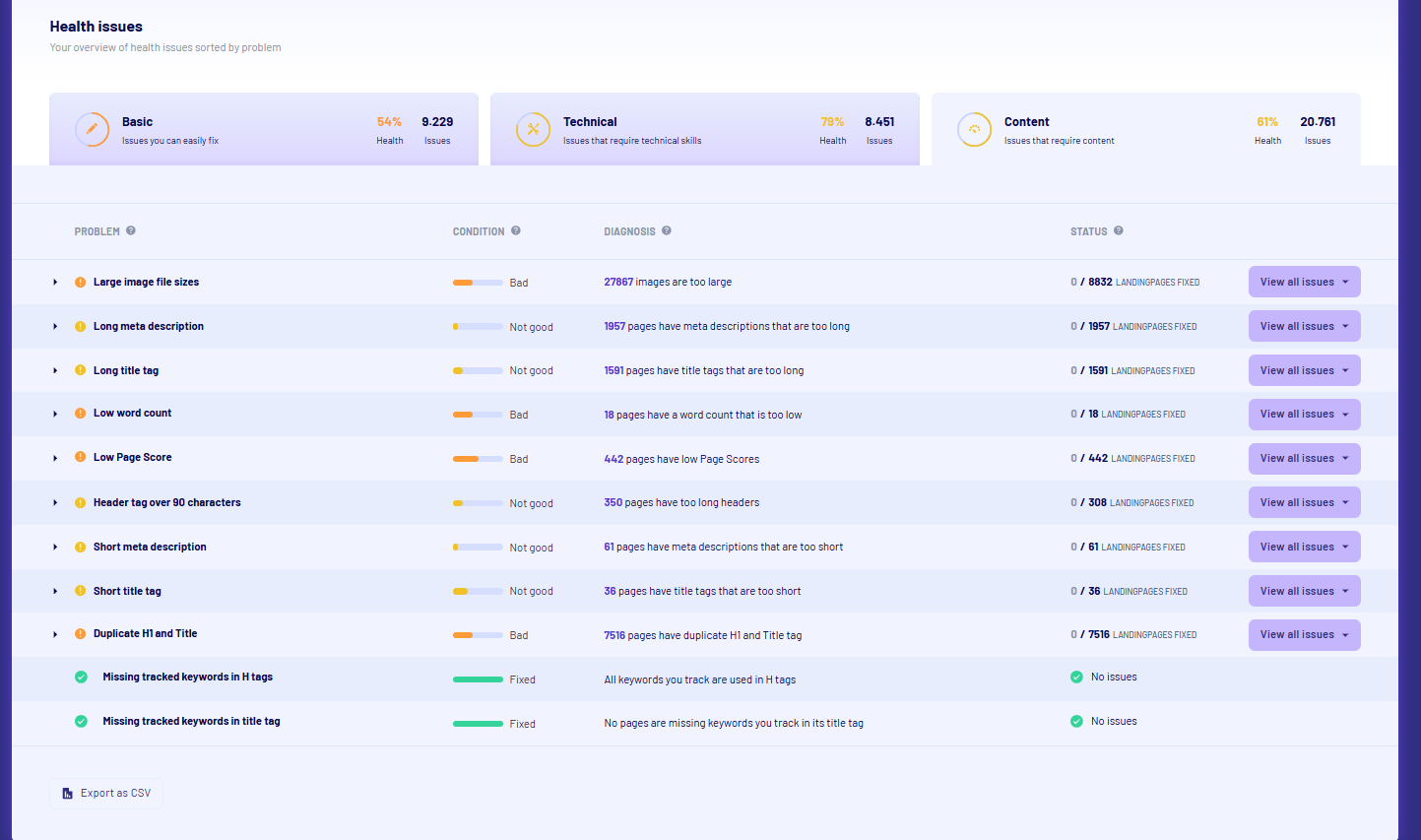
1. Create a Morningscore account (Start with a free trial to test the data 👆️) → do a full health scan → can take several hours to finish:
2. Click the download link above to download the latest zip file of the plugin
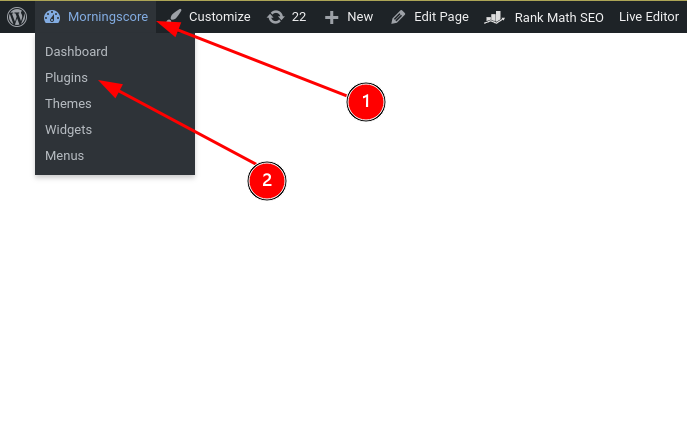
3. Login to your WordPress website and go to Plugins like shown here (or via the admin menu)
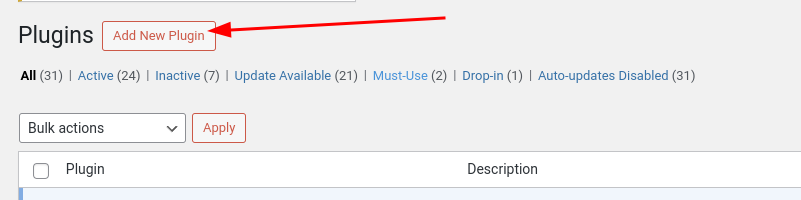
4. In the area that appears click on “Add New Plugin”
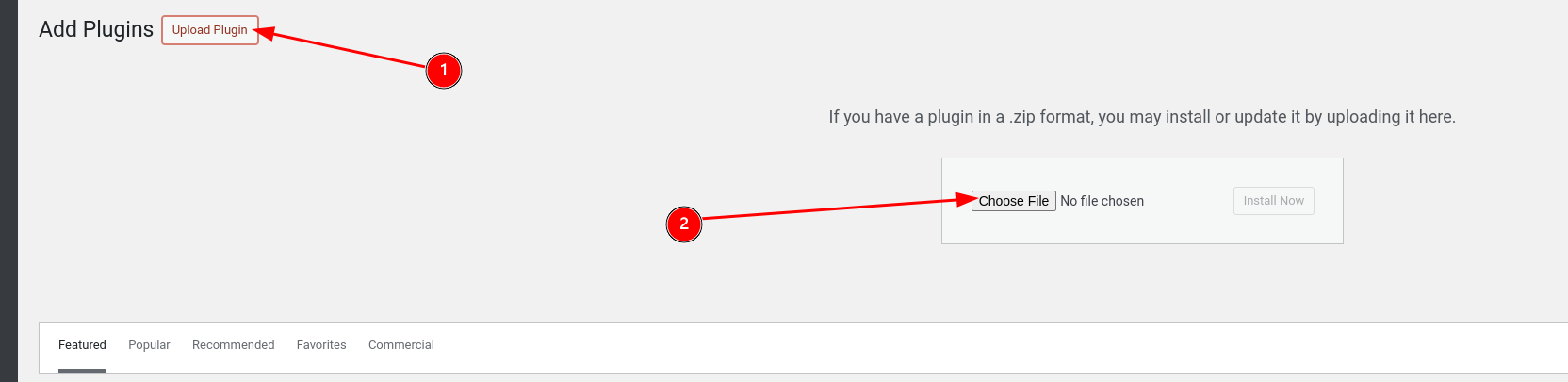
5. Click on “Upload Plugin” and the “Choose File” area appears. Click it to upload our plugin you downloaded in step 1
6. Now activate the plugin and it is installed ✅
7. After activation is done you should find “RANK AI” in the WordPress admin sidebar like this:
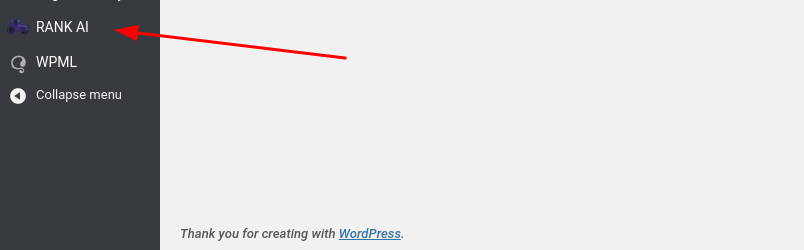
8. Click it to start using the Plugin 👨🚀
Usage guide
Below is a guide on how to use the WordPress plugin to automate your SEO
2 minutes video walkthrough:
Add connection to Morningscore
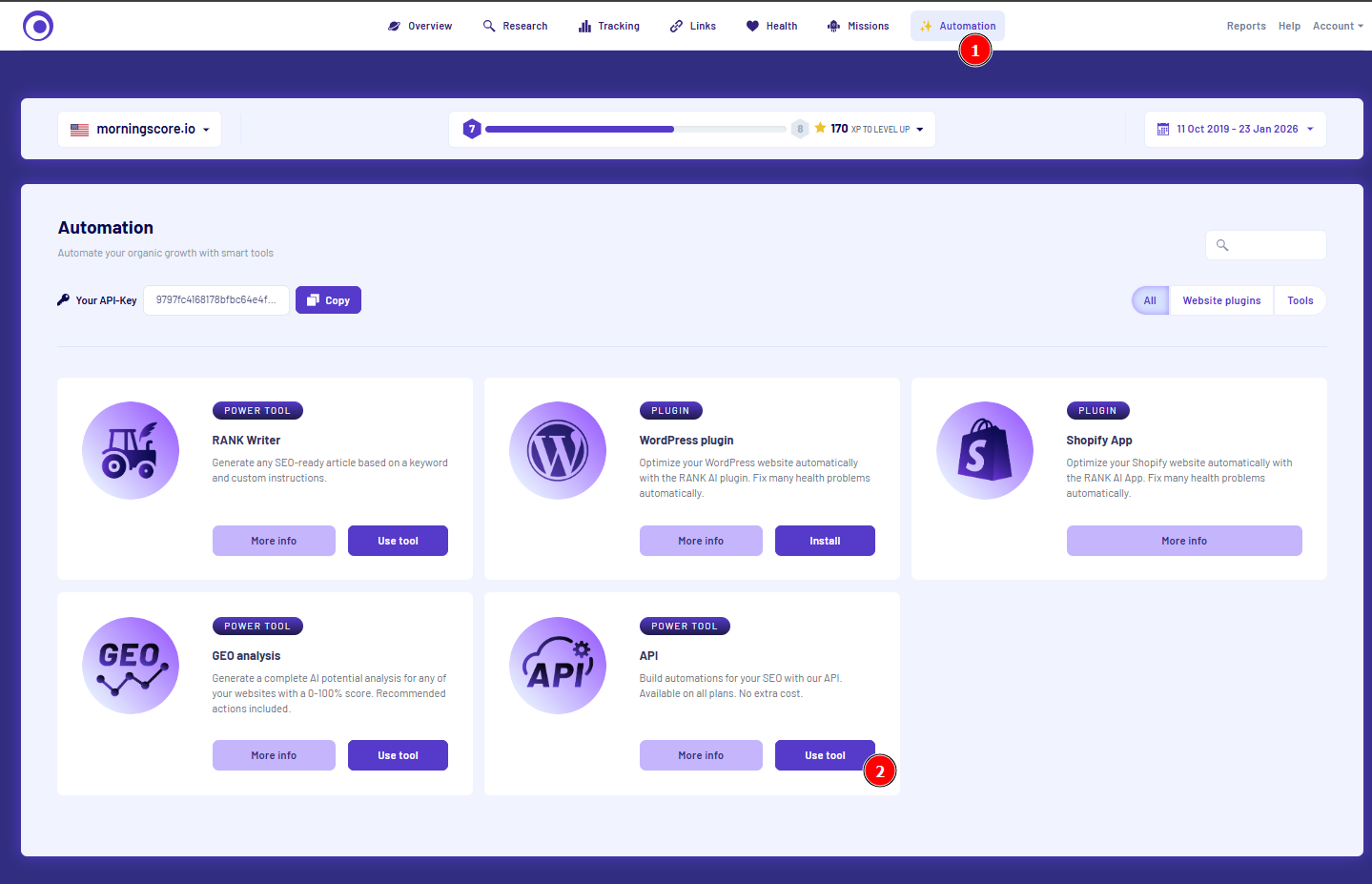
The first thing to do is add your Morningscore account API key (active paid subscription required). Here is how you find it:
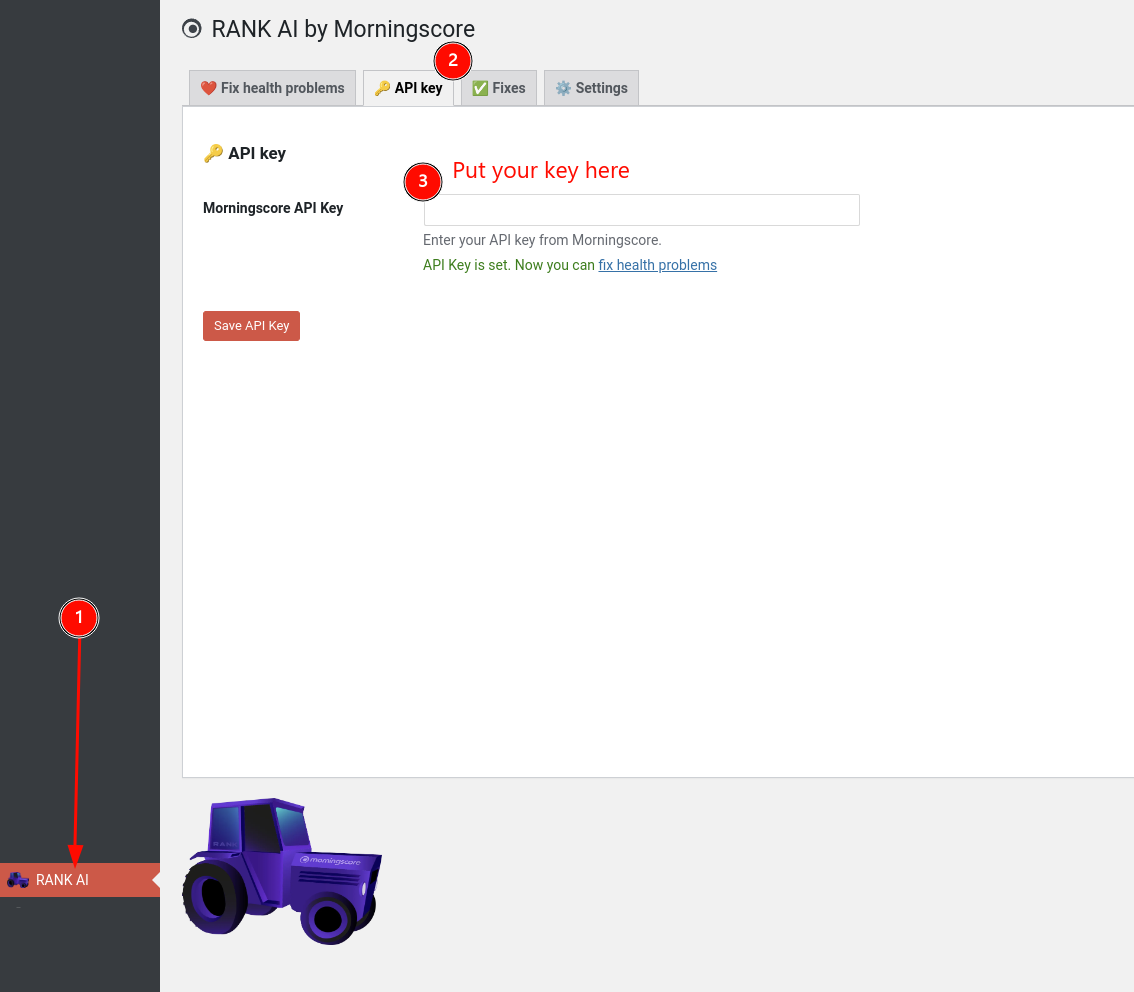
Now paste the key here in the WordPress plugin by following these 3 steps. Remember to click the “Save API Key” button
Aaaaand you are good to go 😎
Fix health issues
Before you start fixing health issues, make sure you have added this website to your Morningscore account and have completed a fresh full scan:
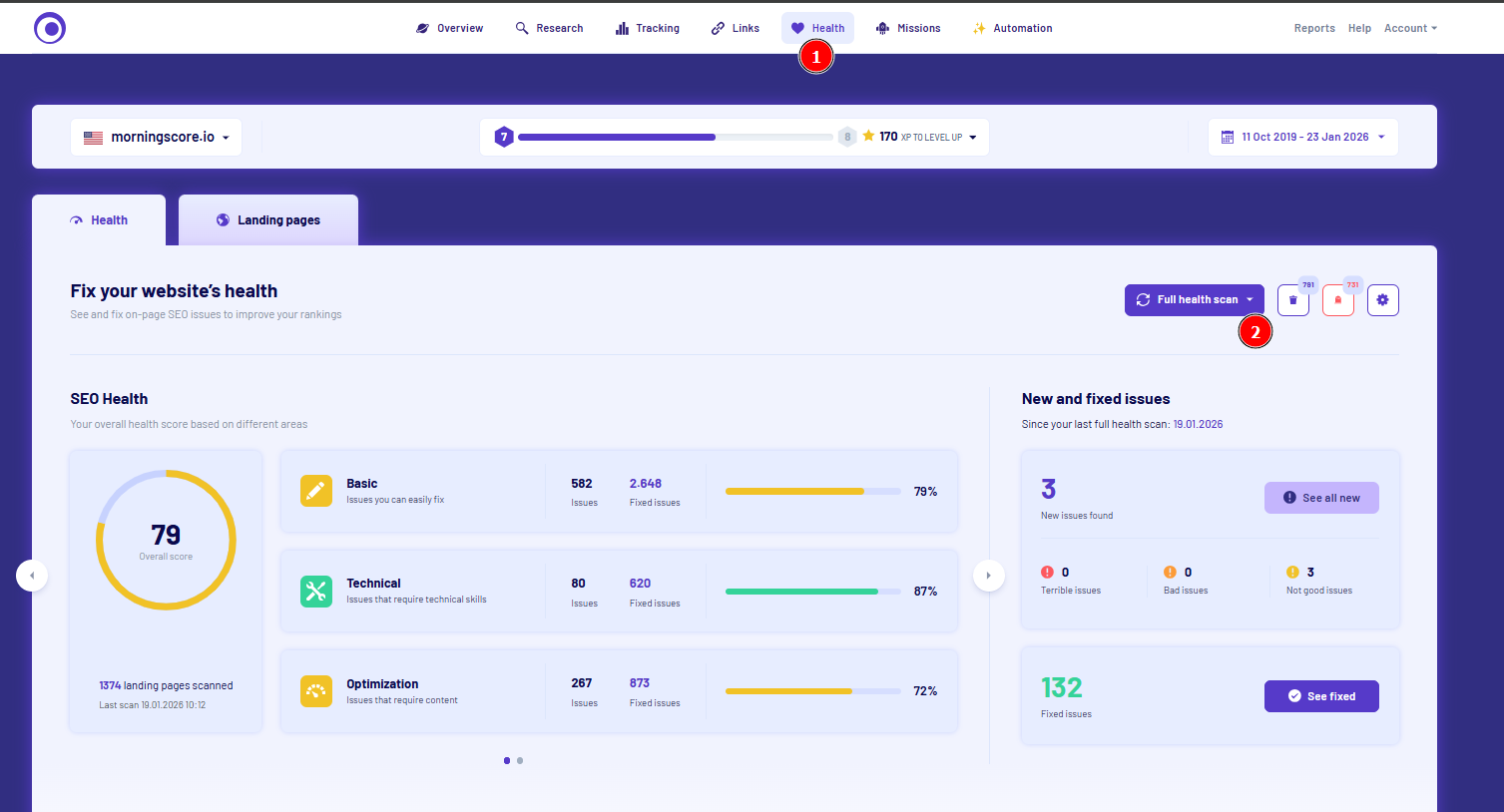
After it is complete you can go to this tab in the plugin and after it loads you should see a list of health issues to fix similar to this:
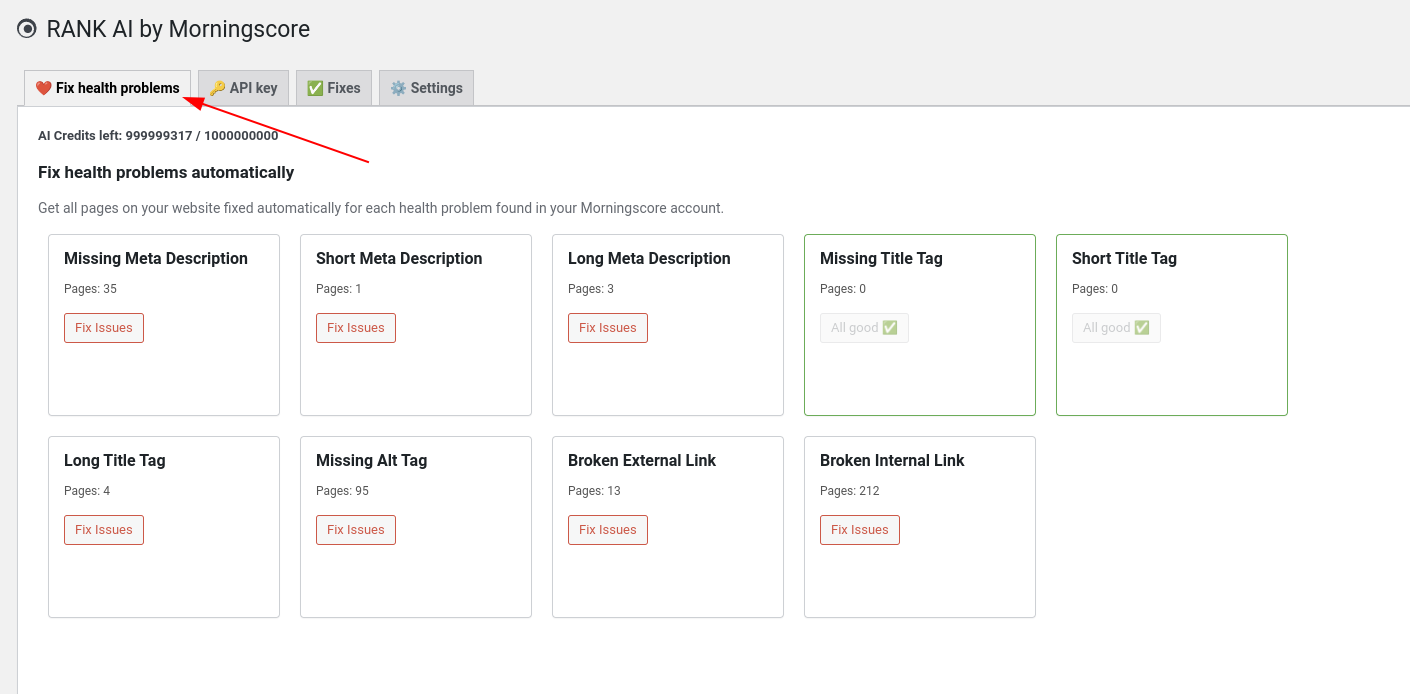
You can now click “Fix issues” on each item to start fixing problems.
You can choose to either fix problems via Manual or Automatic:
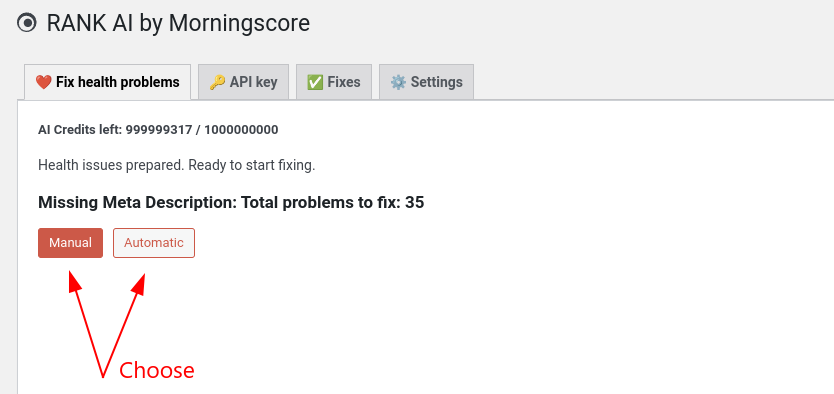
I would recommend Automatic, since you can always edit changes later in the “Fixes” tab. Guide for that below.
If you choose Manual you will have to choose a solution for each problem like this:
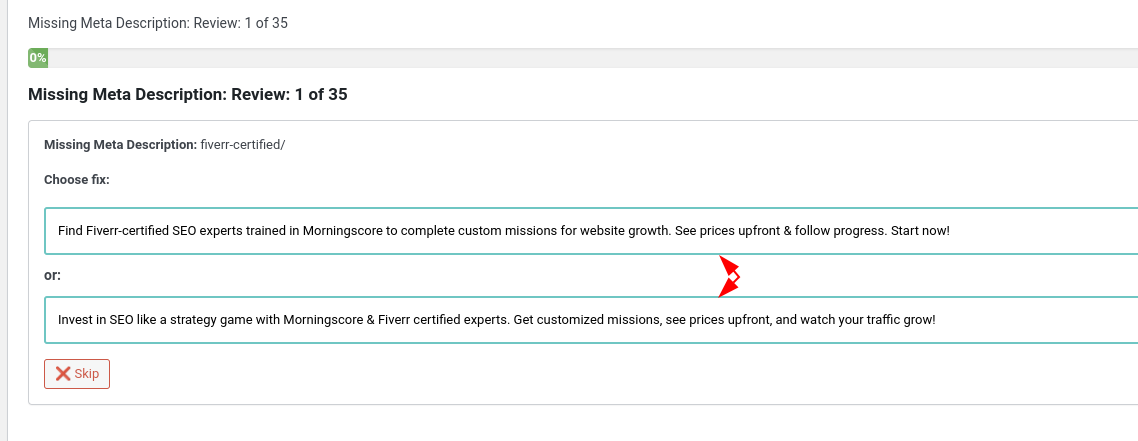
In automatic mode, a choice is made for you.
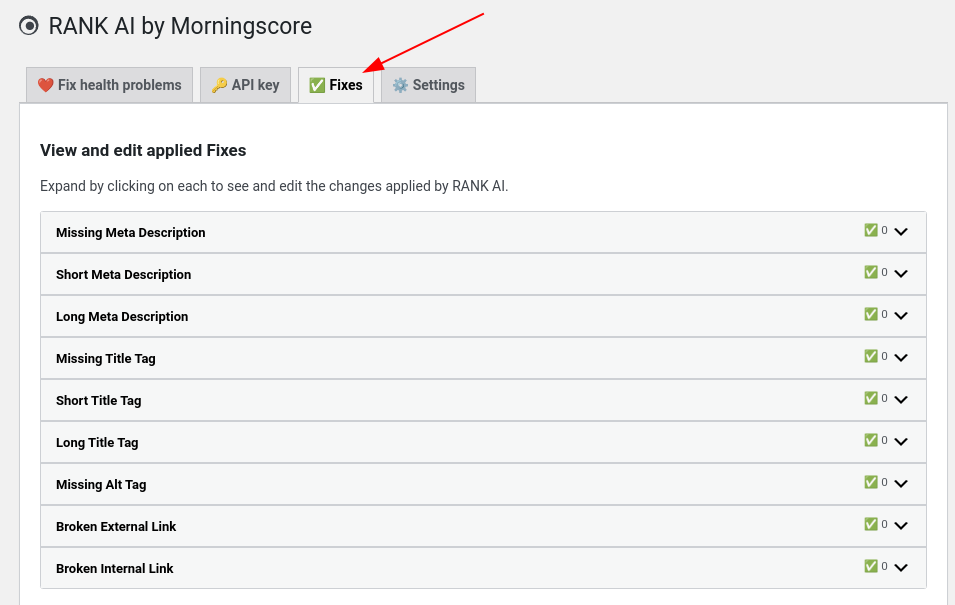
View and edit fixes
Go here to see and edit all fixes made to your website. This is super convenient and editing should be very fast. Just click on each to unfold them and view and edit:
Delete all fixes
If for some reason you want to get rid of all fixes, it is possible under settings here:
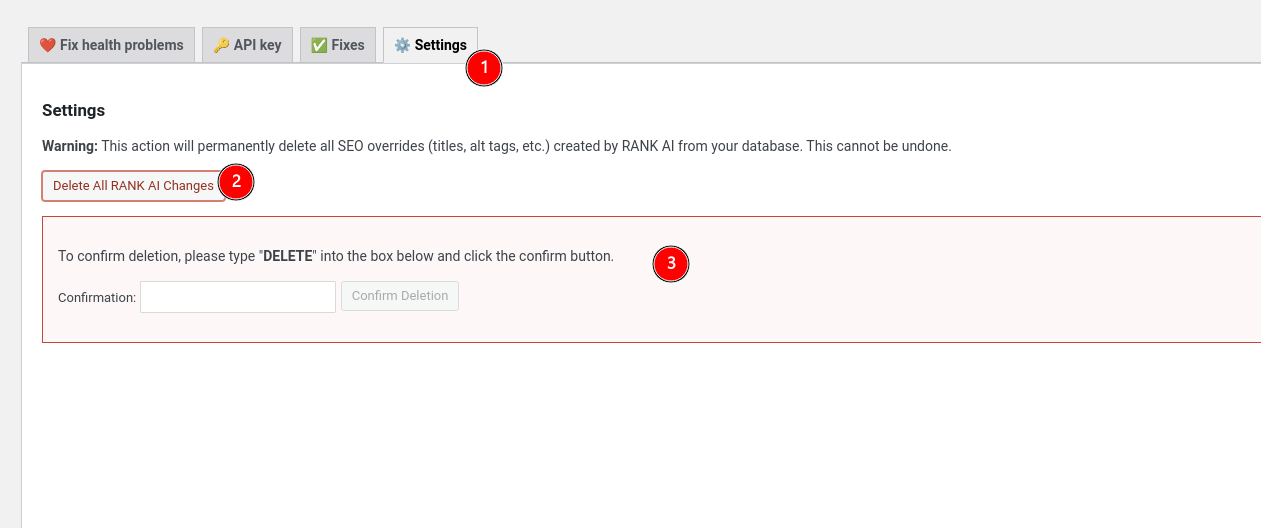
Deactivating and/or deleting the plugin will also make sure none of your fixes are being applied. But they are still in the database. Just not used. So if you activate the plugin again, the fixes will again take effect.
FAQ
Why does it take up to 20 seconds per fix?
We do not just give you some superficial fast AI. The page and SEO data is collected and analyzed and this takes time for the AI to do. Quality takes time. This is also why we recommend to do “Automatic”, let the plugin work in a tab in your browser while you do other things, and then after it’s done manually review all changes and edit them in the Fixes tab. This is much faster.
How are fixes applied?
Fixes are applied via a frontend “filter” which is a safe and fast way to do it with WordPress. A fallback JS script also adds alt-tags to images if the filter fails. The JS script also draws from your own database. No external connections or reliance. You own your data. All fixes are stored in your websites database. Works well with speed optimizing plugins that caches your pages.
How fast are fixes applied?
Around 1 minute after you have approved (or automatically approved) a fix it should be added to your database and immediately apply. We are adding fixes via a queue system (Action Scheduler) to be very gentle on your server.
Fixes are done but Morningscore still says there are problems
This can be caused by 2 issues:
- You have Cache on your website and need to clear it. Read guide here
- The way we apply fixes, a gentle and safe way that is recommended by WordPress, might be overwritten or not respected by your Theme or plugins if they do not follow WordPress best practices. Example: Some of your pages do not have a post id. The good news: Our fixes also won’t cause any damage or trouble. In that case you need to be quite technical to fix it.
Please don’t get too frustrated, the internet is not perfect, neither is this plugin 🥲
I recommend to see it this way: If the plugin can fix around 80% of your issues, it still saved you a lot of time and you can choose to manually fix the last 20% 👍️
Something is not working for me
Sorry about that! WordPress can be fragile. And this plugin is still in beta mode. Please write us in the chat and we see if we can fix the problem 😊
How does the plugin work together with multi language WordPress sites?
The plugin supports all major language plugins but is only tested extensively with WPML for now. Here are the two cases we often see:
language is a subpath like yourwebsite.com/de
If your website has one domain and uses for example /de/ /se/ /es/ etc to change between languages, you don’t need to do anything special. All language versions will be fixed no matter what language you currently have chosen in the admin bar. So it’s all just click and go 😎
Language specific domains:
In WPML we also support having several domains like yoursite.com for English version and yoursite.de for German version. Instructions:
- Make sure that you have set up all versions of your domain as websites in Morningscore, so in this example both yoursite.com 🇺🇸 and yoursite.de 🇩🇪
- Now you need to switch between languages as shown here:
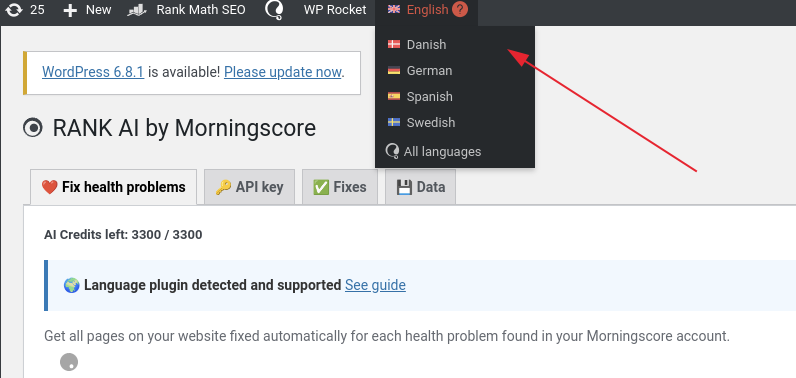
This will make sure each domain is connected properly with Morningscores data, otherwise we won’t know which domain to fix health for.
Give me a more technical explanation of how the plugin works
Tasks are prepared in the admin via AJAX where it calls our API for fixes and consumes 1 AI credit per fix. Fixes are then queued via Action Scheduler (same tool e.g. Woocommerce uses) for insertion into your WP database
So all fixes are stored in a custom table in your WP database (wp_rank_seo_overrides) or in WP_options and then a PHP script fetches changes to the frontend just as the user hits each page and before the DOM is loaded.
The plugin is utilizing WP frontend filters in a very performant way. Tested it to max add 10ms of extra load, and usually 2-3ms. If you cache your pages with a plugin then users won’t even trigger this and the performance impact is zero.
The plugin also adds a fallback JS script for pages where WP filters do not work, but only for alt tags, since that is the troublesome case. And it’s just a fallback + it still loads fixes based on your own database, so no external connection going on. 100% your data and your site.